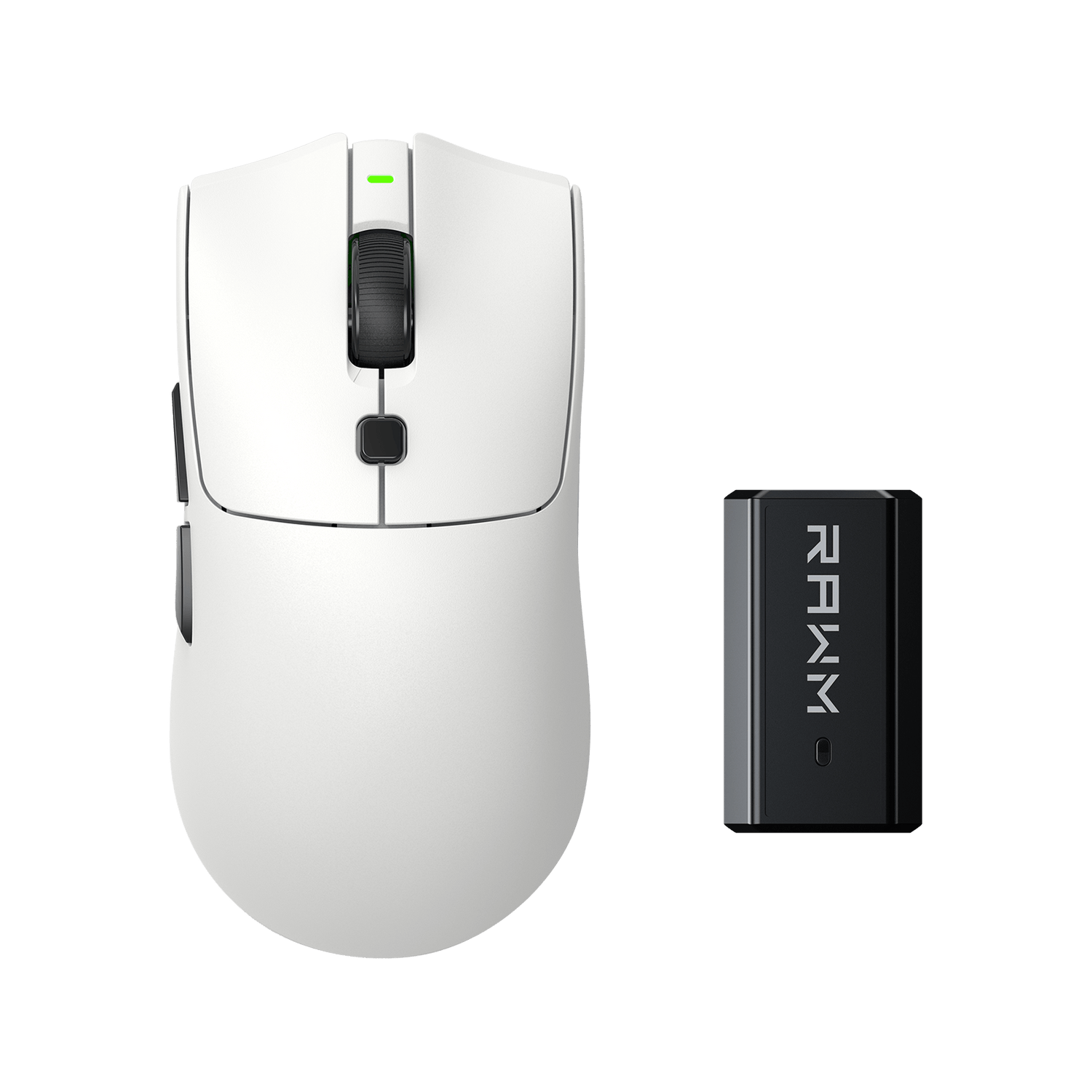
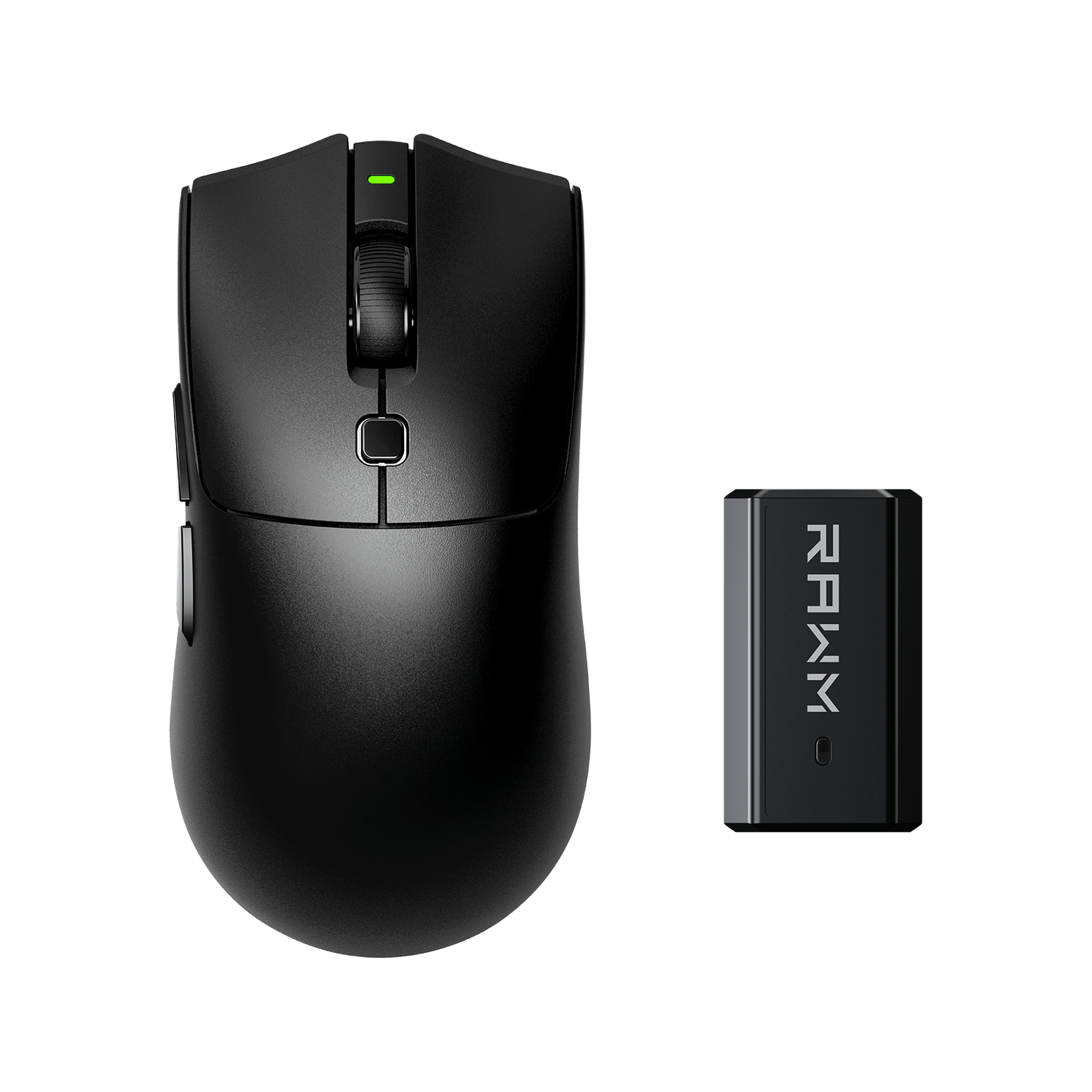
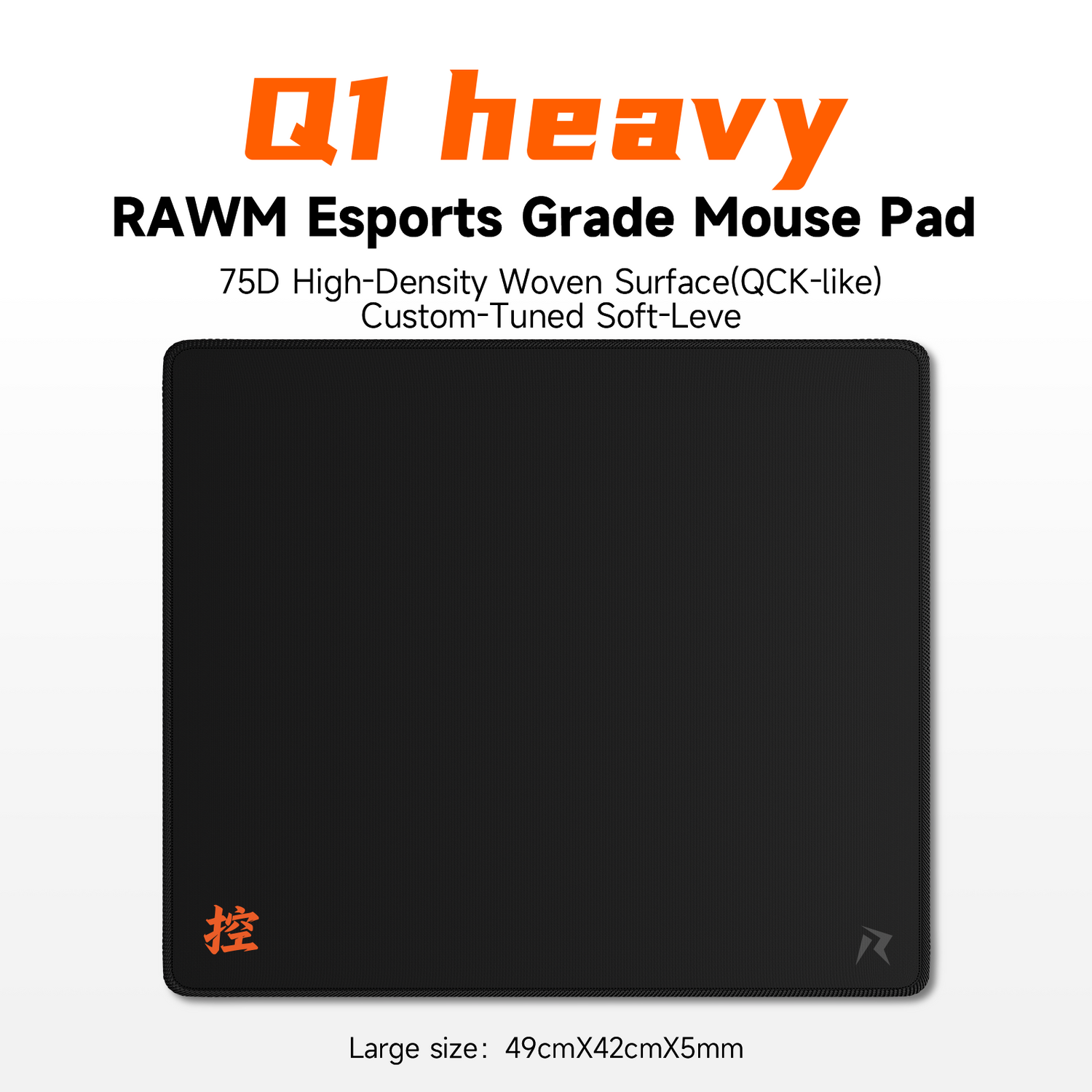
Can I use wireless and wired mouse at same time?
- Can a Computer Use Two Mice at the Same Time?
- Why Would You Use a Wired and Wireless Mouse Together?
- Can You Use Two Mice for Gaming?
- Does Connecting Two Mice Cause Input Lag?
- How Do You Switch Between a Wired and Wireless Mouse?
- Can You Use One Mouse for Gaming and Another for Work?
- What Problems Can Occur When Using Two Mice?
- Should You Keep Both a Wired and Wireless Mouse Connected?

Modern operating systems can generally recognize multiple pointing devices simultaneously. You can connect one mouse through USB while another connects through a wireless receiver or Bluetooth.
However, using two mice at once is different from simply having two mice connected.
The computer may recognize both devices, but the operating system normally combines their movement into the same cursor. That means moving either mouse can control the same pointer.
So why would you want to use two mice? And are there situations where having both a wired and wireless mouse connected actually makes sense?
Let's take a closer look.
1. Can a Computer Use Two Mice at the Same Time?
In most cases, yes.
You can connect:
-
One wired USB mouse
-
One wireless mouse with a USB receiver
-
One Bluetooth mouse
-
Or multiple combinations of these devices
Windows and other modern operating systems can detect multiple pointing devices without requiring you to disconnect one before connecting another.
For example, you might have a wired gaming mouse connected to one USB port and a wireless gaming mouse connected through its receiver.
Both can remain connected.
The important distinction is that multiple mice do not normally create multiple independent cursors.
Instead, their inputs are generally combined into the same pointer.
If you move the wired mouse to the left and then move the wireless mouse to the right, the computer processes both movements as mouse input.
What Happens When You Click?
The same principle generally applies to buttons.
If one mouse is used to click, the operating system receives that click as a mouse-button input.
It doesn't normally matter whether the click came from the wired or wireless device.
This makes having two mice useful for certain testing and troubleshooting situations, but less useful if you expect each mouse to control a completely separate pointer.
| Setup | Can Both Be Connected? | Separate Cursors? |
|---|---|---|
| Wired + wireless | Yes | Usually no |
| Wired + Bluetooth | Yes | Usually no |
| Two wireless mice | Yes | Usually no |
| Two wired mice | Yes | Usually no |
The exact behavior can vary depending on the operating system and specialized software, but for normal desktop use, the inputs are generally treated as one pointing system.
2. Why Would You Use a Wired and Wireless Mouse Together?
For most gamers, there isn't a strong reason to actively use two mice simultaneously.
However, keeping both connected can be useful in several situations.
Testing a New Mouse
Suppose you are testing a new wireless gaming mouse while your existing wired mouse is still connected.
You don't necessarily need to unplug the old mouse.
You can move between them while checking:
-
Tracking
-
Click feel
-
Sensor performance
-
DPI
-
Polling rate
-
Wireless stability
-
Shape and comfort
This can make direct comparisons easier.
Troubleshooting
Having two mice connected can also help determine whether a problem comes from the mouse or the computer.
For example, if your wireless mouse occasionally stops responding, you can immediately test the wired mouse.
If the wired mouse works normally, that gives you useful information about where the problem may be.
Potential causes of wireless problems include:
-
Receiver placement
-
Wireless interference
-
Battery level
-
USB connection
-
Firmware
-
Wireless distance
Switching Between Gaming and General Use
Some users may prefer a lightweight wireless mouse for gaming but keep a different wired mouse connected for another purpose.
You can simply move the mouse you want to use.
There is no requirement to physically disconnect the other one.

3. Can You Use Two Mice for Gaming?
Yes, but normally only one mouse is actively useful for controlling your game at a time.
Games generally receive mouse input through the operating system or through their own input system.
Connecting two mice does not normally give you two separate aiming controls.
For example, if you're playing an FPS game and move both mice simultaneously, their movement may effectively be combined into the same input stream.
This can obviously make aiming unpredictable.
Don't Expect Two Independent Aim Inputs
A common misconception is that two connected mice could provide two independent aiming systems.
That's generally not how standard PC gaming works.
The operating system typically exposes mouse input as a unified pointing device.
Specialized applications can handle multiple physical input devices separately, but ordinary games are not generally designed around two simultaneous mice.
For competitive gaming, this means you should normally use one mouse for actual gameplay.
Keeping another mouse connected is fine, but switching between them during a match would obviously create an inconsistent control experience.
Wired vs. Wireless for Competitive Gaming
Both wired and wireless mice can be suitable for competitive gaming.
The important factors include:
-
Input latency
-
Wireless stability
-
Sensor performance
-
Polling rate
-
Weight
-
Shape
-
Click consistency
-
Battery life
A modern wireless gaming mouse can provide extremely responsive performance while eliminating cable drag.
A wired mouse eliminates the need to manage a battery and can provide a simple plug-and-play connection.
The choice is largely about preference and implementation quality rather than the basic fact that one is wired and the other is wireless.
4. Does Connecting Two Mice Cause Input Lag?
Simply connecting two mice generally does not mean that your gaming mouse will suddenly develop noticeable input lag.
The computer can process input from multiple USB and wireless devices.
However, several factors can affect overall performance.
USB Resources
USB devices share system resources through the computer's USB architecture.
Under normal circumstances, connecting another mouse should not create a meaningful problem.
If you are using many high-bandwidth USB devices simultaneously, however, the overall USB configuration can become more complicated.
This is generally much more relevant to unusual setups than to simply having two mice connected.
Wireless Interference
If one of the mice is wireless, the more relevant concern is usually the wireless connection itself.
Potential sources of problems include:
-
Receiver distance
-
USB 3.x interference in certain setups
-
Other wireless devices
-
Physical obstructions
-
Low battery
-
Poor receiver placement
A high-quality wireless gaming mouse should maintain a stable connection under normal conditions.
High Polling Rates
High-polling-rate mice can generate more frequent reports.
For example, an 8000Hz mouse reports much more frequently than a 1000Hz mouse.
If you have multiple high-polling devices connected simultaneously, system workload can increase.
For most users, however, the difference isn't something to worry about simply because two mice are connected.
The more important consideration is whether your computer maintains stable game performance.
5. How Do You Switch Between a Wired and Wireless Mouse?
For normal desktop use, switching is extremely simple.
Both mice can remain connected.
You can physically move the mouse you want to use, and its movement will be detected.
There usually isn't a special "active mouse" setting that you need to change.
If you want to completely disable one mouse, you can disconnect it or disable its device through the operating system.
This can be useful when testing a particular mouse.
Using Mouse Software
Some gaming mice also come with configuration software.
Depending on the manufacturer, software may allow you to configure:
-
DPI
-
Polling rate
-
Button assignments
-
Lift-off distance
-
Profiles
-
Lighting
-
Firmware
-
Other performance settings
If you have two mice from different manufacturers, their software may run independently.
However, having multiple mouse configuration applications running at the same time can sometimes create unnecessary complexity.
If you're troubleshooting a mouse, it's often better to keep the configuration as simple as possible.
A Simple Testing Method
If you are comparing two mice, try this:
Step 1: Connect both mice.
Step 2: Keep the same DPI and sensitivity where possible.
Step 3: Use the same mousepad.
Step 4: Test identical movements.
Step 5: Compare tracking, shape, weight, clicks, and comfort.
This gives you a much more meaningful comparison than simply looking at specifications.

6. Can You Use One Mouse for Gaming and Another for Work?
Absolutely.
This is actually one of the more practical reasons to keep two mice connected.
For example, you might prefer a lightweight gaming mouse for FPS games but want a different ergonomic mouse for long productivity sessions.
The two mice can remain connected.
You can simply move whichever mouse you want to use.
This can be particularly useful when the two mice have very different designs.
A competitive gaming mouse might prioritize:
-
Low weight
-
Fast movement
-
Precise sensor tracking
-
Minimal buttons
A productivity-focused mouse might prioritize:
-
Ergonomic support
-
Additional buttons
-
Scroll-wheel features
-
Comfort over long periods
There is no technical requirement for one mouse to be disconnected when the other is being used.
Different Mouse, Different Purpose
Your gaming mouse doesn't necessarily have to be your only mouse.
For example:
| Use Case | Potential Mouse Priority |
|---|---|
| Competitive FPS | Low weight, precise tracking |
| General gaming | Balance of comfort and performance |
| Office work | Ergonomics and convenience |
| Creative work | Additional buttons and control |
| Travel | Compact wireless design |
Using different mice for different activities can actually make more sense than trying to find one device that does everything perfectly.
7. What Problems Can Occur When Using Two Mice?
Although two mice can normally coexist without problems, there are situations where having multiple devices can become inconvenient.
Accidental Movement
The biggest practical issue is simple.
If both mice are within reach, accidentally moving the second mouse can move your cursor.
This can be annoying when you're gaming or working.
Conflicting Software
If both mice use manufacturer software, the applications may sometimes compete for control over settings or background services.
This isn't necessarily a problem, but it can make troubleshooting more complicated.
Different DPI Settings
Suppose your wireless mouse is configured at 800 DPI while your wired mouse is configured at 1600 DPI.
Switching between them can make cursor movement feel dramatically different.
For gaming, this can be particularly noticeable.
Different Polling Rates
The same applies to polling rate.
One mouse might run at 1000Hz while another supports 4000Hz or 8000Hz.
The difference won't necessarily cause a problem, but it means the two mice can feel different.
Wireless Battery Management
A wireless mouse that remains connected doesn't necessarily need to be actively used, but depending on its design and power-management behavior, keeping it connected may still consume some battery.
If you're not using it for an extended period, storing it properly or switching it off can be sensible.
8. Should You Keep Both a Wired and Wireless Mouse Connected?
For most people, yes, you can—but you probably don't need to.
If you're testing mice, comparing products, troubleshooting a problem, or using different mice for different tasks, keeping both connected is perfectly reasonable.
For competitive gaming, however, simplicity is usually better.
Choose the mouse that fits your hand, sensitivity, grip style, and gaming requirements, then use that mouse consistently.
If you're comparing a wired and wireless mouse, don't focus only on the connection type.
Consider the complete experience:
Shape + Weight + Sensor + Clicks + Polling Rate + Connection + Feet + Comfort
A wireless mouse isn't automatically better than a wired mouse.
A wired mouse isn't automatically more responsive.
Modern gaming mice can perform extremely well using either connection method.
The best choice is the one that provides reliable, predictable control for the way you actually use your computer.
Final Takeaway
You can absolutely connect and use a wireless mouse and a wired mouse at the same time.
Your computer can generally recognize both, but they will normally control the same cursor rather than creating two independent pointers.
For gaming, using one mouse at a time is the practical choice.
For testing, troubleshooting, productivity, or having separate mice for different tasks, keeping both connected can be completely convenient.
And if you're deciding between wired and wireless, don't let the connection type make the decision for you.
Choose the mouse that feels right, tracks consistently, and fits the way you play.
>>See also 8K vs. 1000Hz Polling: Can You Really Feel the Difference? >>>>>