How do I change mouse feet/skates?
- 1. When should you replace mouse feet?
- 2. Tools you need before starting
- 3. How to safely remove old mouse skates
- 4. Cleaning the surface before installing new skates
- 5. Installing new mouse feet correctly
- 6. Choosing the right type of replacement skates
- 7. Breaking in new skates

Mouse feet, also called skates, are one of the most overlooked components of a gaming mouse. They directly affect glide speedնարկcontrol balance, friction consistency, and even sensor feel. Over time, stock skates wear down, edges become rough, and glide performance drops. If your mouse starts feeling scratchy, inconsistent, or slower than usual, replacing the skates can restore smooth movement instantly.
Changing mouse feet is not complicated, but it requires patience and proper technique. Done correctly, it can significantly improve glide consistency and extend the lifespan of your mouse. Done carelessly, it can damage the shell or create uneven contact with your mousepad.
1. When should you replace mouse feet?
Mouse skates are typically made from PTFE (Teflon) or similar low-friction materials. They gradually wear down due to constant contact with the mousepad.
Common signs that replacement is needed include:
-
Scratchy or uneven glide
-
Visible flattening or thinning
-
Edges peeling or lifting
-
Slower movement compared to when new
-
Increased surface noise
If you use a hard pad, skates may wear faster than on cloth pads. Heavy grip pressure and long gaming sessions also accelerate wear.
Replacing skates every 6–12 months is common for heavy users, but it ultimately depends on usage intensity and surface type.
2. Tools you need before starting
Before removing old skates, gather the proper tools:
-
Replacement mouse feet designed for your model
-
Plastic pry tool or thin plastic card
-
Tweezers (optional)
-
Isopropyl alcohol (70% or higher)
-
Microfiber cloth or lint-free wipe
Avoid metal tools when possible. They can scratch the mouse shell and create uneven surfaces. A plastic card provides enough leverage without risking cosmetic damage.
Work on a clean, flat surface with good lighting. Small debris trapped under new skates can affect glide consistency.
3. How to safely remove old mouse skates
Begin by powering off and unplugging your mouse. Flip it over and locate the existing skates. Most gaming mice have 2–4 main feet around the edges.
Gently insert a plastic card under one edge of a skate. Slowly lift it upward without forcing it. If the adhesive is stubborn, apply gentle heat using warm air from a hairdryer for a few seconds. Heat softens adhesive and makes removal easier.
Peel the skate off gradually rather than ripping it. If adhesive residue remains, do not scratch it off aggressively.
Take your time. Rushing this step can damage the plastic base.
4. Cleaning the surface before installing new skates
Once the old skates are removed, clean the base thoroughly. Use a small amount of isopropyl alcohol on a microfiber cloth to remove leftover adhesive and dust.
The goal is a smooth, flat surface with no residue. Any uneven adhesive left behind can create tilt or wobble once new skates are applied.
Allow the surface to dry completely before installation. Alcohol evaporates quickly, but moisture trapped under skates can weaken adhesion.
5. Installing new mouse feet correctly
Most aftermarket skates come with pre-applied adhesive backing. Remove the protective film carefully without touching the adhesive side excessively.
Align each skate precisely with its designated cutout. Lower it slowly and press firmly once aligned. Avoid repositioning after contact, as adhesive strength decreases once lifted.
After installation, apply gentle pressure for 10–20 seconds to ensure secure bonding. Some players prefer letting the mouse rest for a few hours before heavy use to allow the adhesive to fully set.
Proper alignment ensures balanced glide and prevents uneven wear.
6. Choosing the right type of replacement skates
Replacement skates vary in thickness, shape, and material quality.
Common options include:
-
Standard PTFE for balanced glide
-
Pure PTFE for faster movement
-
Rounded-edge designs for smoother initial contact
-
Thicker skates for slight lift adjustment
Thicker skates slightly increase the sensor-to-surface distance, which can subtly affect lift-off distance. The change is usually small but noticeable for sensitive players.
If you prioritize consistent tracking and stable glide, choose high-quality skates designed specifically for your mouse model. Precision fit prevents gaps or pressure imbalance.
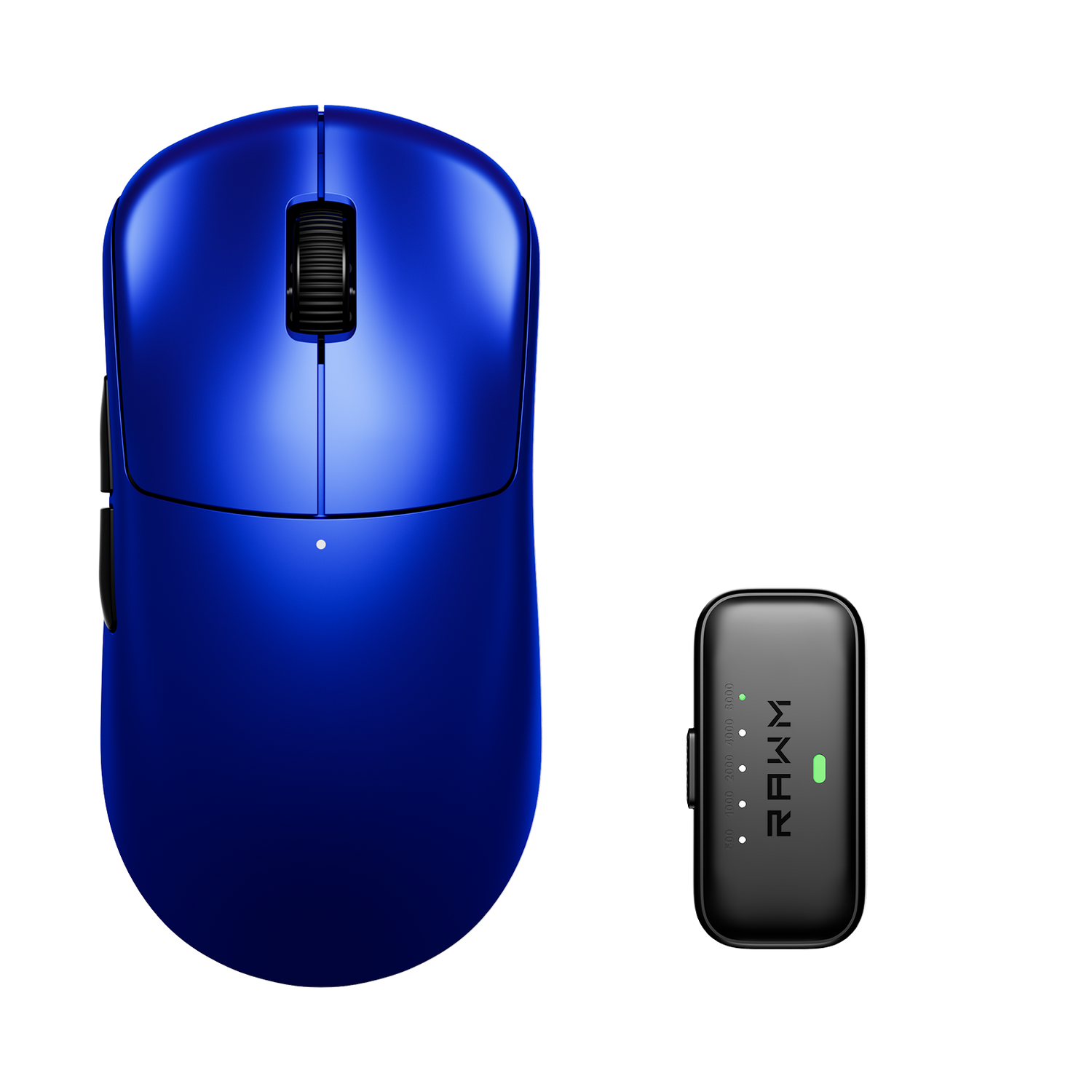
Performance-focused mice like the Leviathan V4 are engineered with well-calibrated skate thickness and balanced contact points, so selecting compatible aftermarket skates maintains intended glide performance.
7. Breaking in new skates
New skates often feel slightly faster or smoother during the first few sessions. This is normal. After a short break-in period, glide stabilizes.
Avoid judging performance immediately after installation. Give the skates several hours of normal use to settle naturally against your mousepad.
During this period, check for wobble or uneven contact. If everything feels stable, the installation was successful.
Replacing mouse feet is one of the simplest upgrades you can perform. With careful removal, thorough cleaning, and precise alignment, you can restore smooth glide and consistent tracking without replacing the entire mouse.
Have you noticed changes in glide over time, or are you considering upgrading to a faster or more controlled skate type?
>>See also Is sensor performance different on soft vs hard pad? >>>>>