How do I check my current DPI?
- 1. What DPI means in real mouse movement
- 2. Checking DPI using mouse software
- 3. Checking DPI through operating system settings
- 4. Measuring DPI manually with distance testing
- 5. Identifying DPI by feel and in-game behavior
- 6. Why confirming your current DPI actually matters

DPI plays a quiet but decisive role in how a mouse feels during everyday use and gaming. Many players adjust sensitivity in games or operating systems without actually knowing the real DPI value their mouse is using. Over time, this creates confusion, inconsistent aim, and difficulty replicating settings across devices. Checking your current DPI is not complicated, but the method depends on your mouse, your software setup, and how precise you want the result to be. Once you know your true DPI, fine-tuning sensitivity becomes far more predictable and repeatable.
1. What DPI means in real mouse movement
DPI, or dots per inch, describes how far the cursor moves on screen relative to physical mouse movement. A higher DPI means the cursor travels farther with less hand movement, while a lower DPI requires more physical distance to achieve the same on-screen motion.
In practice, DPI is only one part of the overall sensitivity equation. Operating system settings, in-game sensitivity sliders, and even screen resolution all influence how movement feels. Still, DPI is the foundation. If you do not know your current DPI, every other adjustment becomes guesswork.
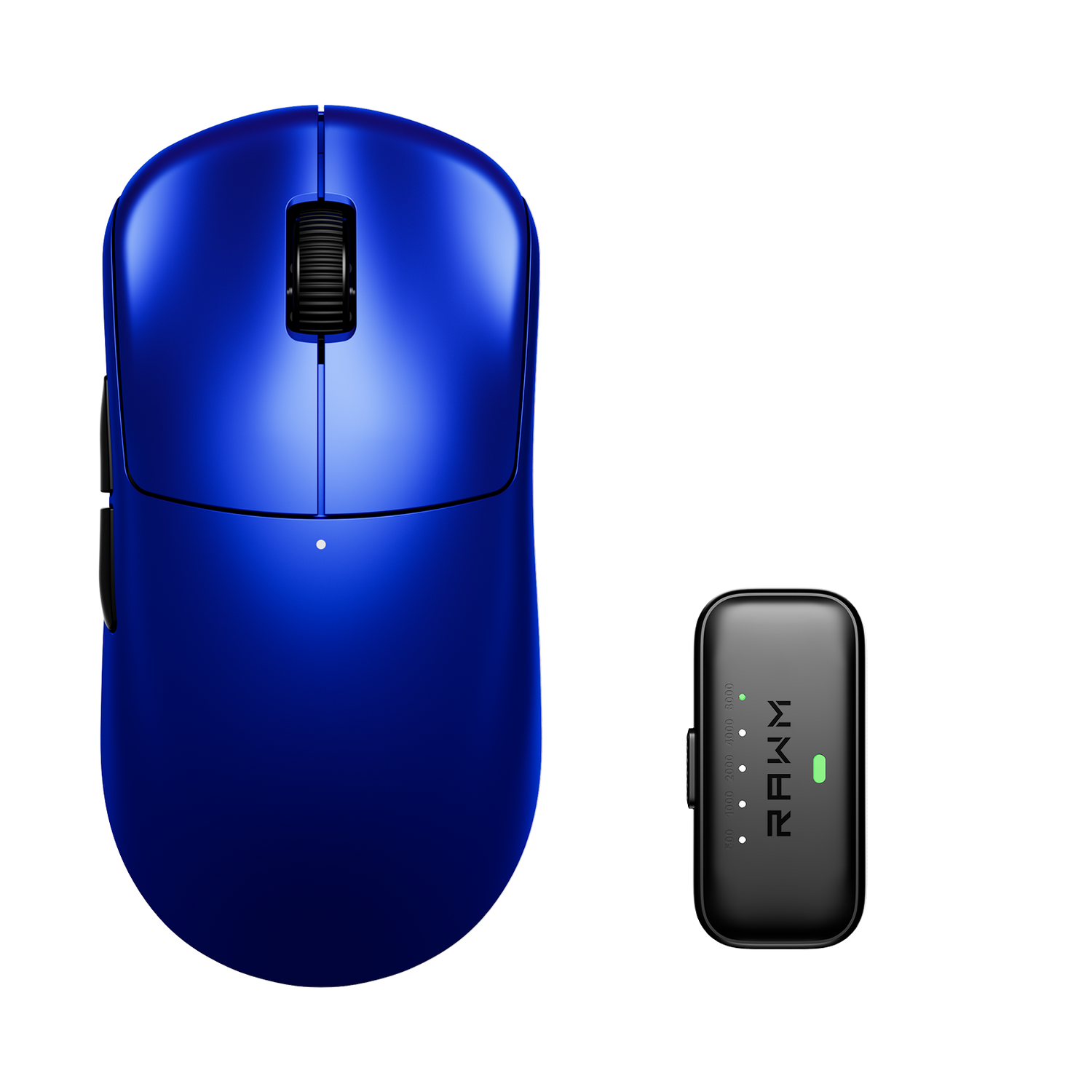
Many mice ship with multiple preset DPI levels, often switched using a button on the mouse. Without checking, you may be playing on a different DPI than you assume, especially if the button was pressed accidentally.
2. Checking DPI using mouse software
The most reliable way to check your current DPI is through your mouse’s official software. Most gaming mice support configuration software that displays active DPI values in real time.
Once the software is installed, connecting the mouse usually reveals one or more DPI stages. The currently active DPI is often highlighted. Some software also shows polling rate, lift-off distance options, and profile switching behavior, all of which can influence how DPI feels during use.
If your mouse supports onboard profiles, the software may show multiple stored DPI values. Make sure you identify which profile is currently active. If DPI switching is enabled, pressing the DPI button on the mouse will cycle through these values.
For users who frequently move between computers, checking DPI through software ensures consistency before adjusting any in-game sensitivity settings.
3. Checking DPI through operating system settings
Operating system sensitivity does not directly show DPI, but it can help you confirm whether your DPI is behaving as expected.
On Windows, mouse pointer speed affects how raw DPI translates to cursor movement. The default position in the pointer speed slider corresponds to a one-to-one relationship, meaning no scaling is applied. If this slider has been changed, the cursor may feel faster or slower regardless of DPI.
On macOS and Linux, similar acceleration and sensitivity controls exist. These settings do not reveal DPI, but they can mask it. If you are trying to verify DPI accurately, it is best to temporarily set OS sensitivity to default values and disable acceleration if possible.
This step ensures that any DPI testing you do reflects true sensor behavior rather than software scaling.
4. Measuring DPI manually with distance testing
If your mouse does not have software, or if you want to verify accuracy, manual testing is a reliable option.
Start by placing your mouse at one edge of a mousepad. Mark a fixed distance, such as one inch or five centimeters. Move the mouse slowly and steadily across that distance while observing how far the cursor travels on screen.
Using a ruler and a screen measurement tool, you can calculate DPI by dividing the number of pixels moved by the physical distance traveled. This method takes more effort but provides a surprisingly accurate result when done carefully.
Manual testing is also useful for identifying inconsistencies. If the cursor travels different distances with the same physical movement, it may indicate acceleration, surface issues, or sensor instability rather than a DPI problem.
5. Identifying DPI by feel and in-game behavior
While not exact, experienced players can often estimate their DPI based on muscle memory and movement range.
For example, many FPS players know how far they must move the mouse to perform a 360-degree turn in-game. By combining this distance with known sensitivity values, they can narrow down their DPI range.
This method is helpful when switching between mice or when software access is unavailable. However, it should be treated as a rough estimate rather than a precise measurement.
If your aim feels inconsistent across sessions, it may be because your DPI is not what you believe it to be, especially if your mouse has multiple DPI stages.
6. Why confirming your current DPI actually matters
Knowing your current DPI makes every other adjustment easier. It allows you to replicate settings across games, share sensitivity values with other players, and troubleshoot aim issues more effectively.
It also prevents overcompensation. Many players increase in-game sensitivity when the real issue is simply an unexpectedly low DPI, or lower sensitivity to counteract a DPI that is higher than intended.
Once DPI is confirmed, fine-tuning becomes deliberate rather than reactive. This leads to better consistency, stronger muscle memory, and more confidence in both casual use and competitive play.
What method do you usually rely on to check or estimate your DPI, and have you ever discovered it was different from what you expected?
>>See also What’s sensor spin‑out and prevention? >>>>>