Can software disable angle‑snapping?
1. What angle snapping is and why disable angle snapping gaming mouse settings matter
2. Can software actually disable angle snapping gaming mouse behavior?
3. How to check if disable angle snapping gaming mouse software is working
4. Firmware vs software limits when you disable angle snapping gaming mouse features
5. Does disabling angle snapping improve aim consistency?
6. Best practices to disable angle snapping gaming mouse safely

Angle snapping is one of the most misunderstood mouse behaviors in competitive gaming. Many players notice that their crosshair feels unnaturally straight or slightly “assisted,” especially during slow tracking or horizontal flicks. This leads to a common and important question: can software actually disable angle snapping gaming mouse behavior, or is it locked at the hardware level?
Disable angle snapping gaming mouse settings are especially relevant for FPS players who rely on raw, unfiltered input. Angle snapping was originally designed to help with productivity tasks like drawing straight lines, but in gaming, it can interfere with muscle memory and aim precision. Understanding how to disable angle snapping gaming mouse features correctly can help restore true 1:1 tracking and improve consistency.
1. What angle snapping is and why disable angle snapping gaming mouse settings matter
Angle snapping is a form of cursor correction where the mouse firmware or driver slightly adjusts your movement to produce straighter lines. From a technical perspective, it smooths small directional changes and aligns movement along dominant axes.
For competitive play, disable angle snapping gaming mouse control is important because:
-
It alters raw sensor data
-
It reduces micro-adjustment precision
-
It interferes with natural hand movement
-
It can feel inconsistent at different speeds
Disable angle snapping gaming mouse settings allow the sensor to report movement exactly as detected, without algorithmic correction. This is especially critical for low-DPI players who rely on fine wrist and arm adjustments.
While some casual users may not notice angle snapping, experienced players often feel something is “off” when it is enabled, even if they cannot immediately identify the cause.
2. Can software actually disable angle snapping gaming mouse behavior?
The short answer is: sometimes. Whether software can disable angle snapping gaming mouse behavior depends on how the feature is implemented.
There are three common implementation types:
-
Driver-level angle snapping
-
Firmware-level angle snapping
-
Sensor-native angle snapping
If angle snapping is handled at the driver level, then disable angle snapping gaming mouse options are usually available in the manufacturer’s software. Many gaming mice offer a toggle labeled “angle snapping,” “angle tuning,” or “prediction.”
However, if angle snapping is embedded in firmware, software may only partially disable angle snapping gaming mouse behavior. In rare cases, it cannot be disabled at all unless a firmware update exists.
Sensor-native angle snapping is uncommon in modern gaming sensors, but older or office-oriented sensors may still apply it internally.
3. How to check if disable angle snapping gaming mouse software is working
Simply toggling a setting is not enough. To confirm that disable angle snapping gaming mouse changes are effective, testing is required.
Common testing methods include:
-
Drawing slow diagonal lines in a paint program
-
Using mouse testing tools that display raw input paths
-
Comparing movement consistency at different speeds
If disable angle snapping gaming mouse settings are active, diagonal lines should appear slightly wavy and organic rather than perfectly straight. Perfectly straight lines during slow movement often indicate that angle snapping is still enabled.
Below is a simple comparison table to help identify behavior:
| Movement Test | Angle Snapping Enabled | Angle Snapping Disabled |
|---|---|---|
| Slow diagonal draw | Straighter lines | Natural waviness |
| Micro adjustments | Slight correction | True raw input |
| Flick consistency | Artificial smoothing | Hand-dependent |
Testing confirms whether disable angle snapping gaming mouse software changes are genuine or cosmetic.
4. Firmware vs software limits when you disable angle snapping gaming mouse features
One critical limitation of disable angle snapping gaming mouse solutions is firmware priority. Firmware operates below the operating system and driver layer, meaning software cannot always override it.
In high-end gaming mice, manufacturers usually allow full disable angle snapping gaming mouse control through software or firmware toggles. This is expected for competitive-grade devices.
However, budget or hybrid-use mice may lock angle snapping at the firmware level. In these cases:
-
Software toggles may do nothing
-
Settings reset after power cycles
-
Raw input is never truly raw
This is why serious players should verify that disable angle snapping gaming mouse options are truly functional before committing to a mouse.
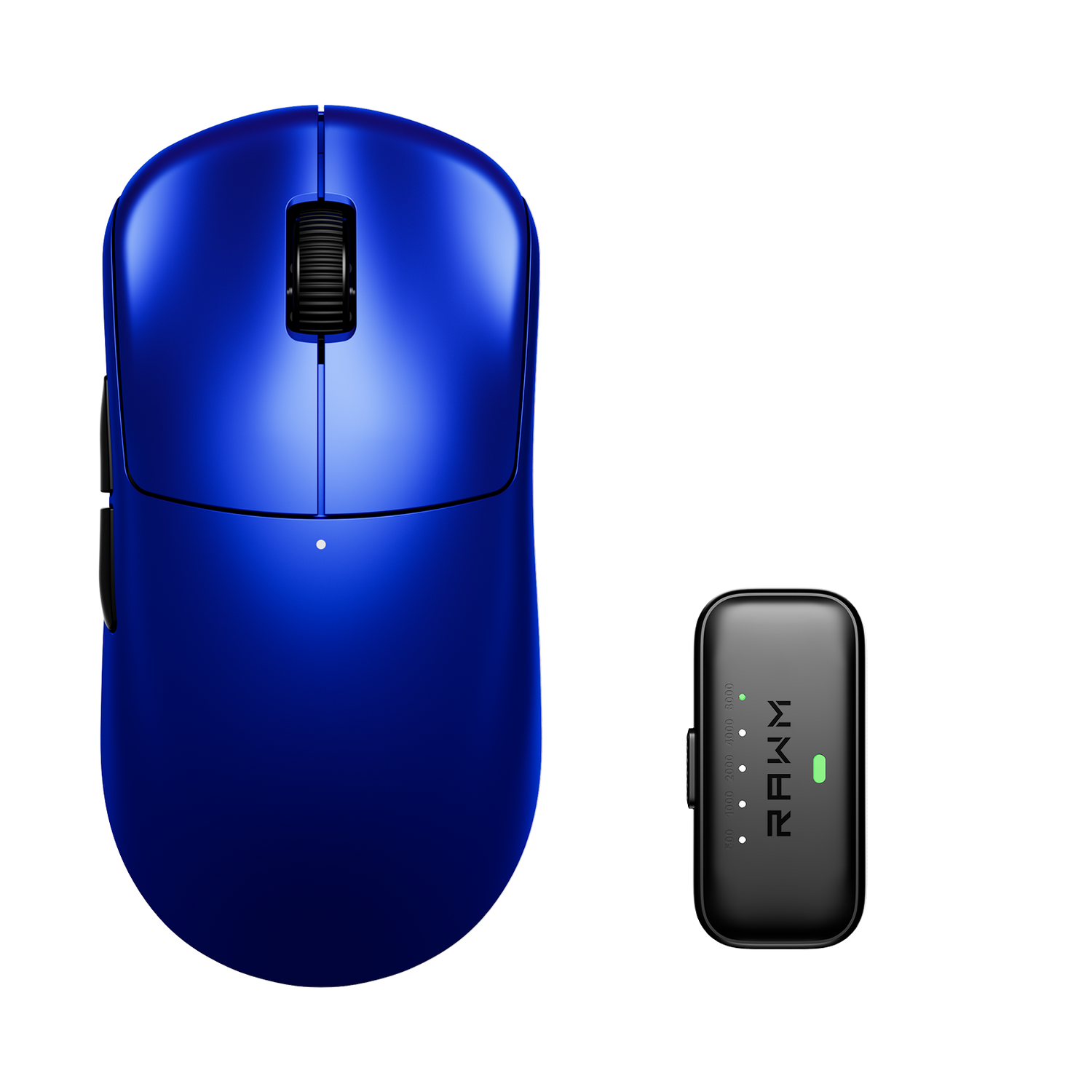
Some competitive-focused mice, including models like the RAWM ER21PRO, prioritize raw sensor output and do not force angle snapping by default, reducing the need for aggressive software intervention.
5. Does disabling angle snapping improve aim consistency?
Disable angle snapping gaming mouse settings can significantly improve consistency, but only if the player’s fundamentals are solid. Removing angle snapping does not automatically improve aim, but it removes artificial correction that can mask bad habits.
Benefits of disable angle snapping gaming mouse configuration include:
-
More predictable flicks
-
Better micro-corrections
-
Improved muscle memory transfer
-
Consistent tracking across games
Players who practice regularly often report that once disable angle snapping gaming mouse settings are applied, aim feels harder at first but improves more reliably over time. This is because raw input exposes real movement patterns instead of smoothing them.
6. Best practices to disable angle snapping gaming mouse safely
To avoid unexpected behavior, follow these best practices:
-
Use official mouse software only
-
Update firmware before testing
-
Disable angle snapping gaming mouse features before adjusting DPI or polling rate
-
Test changes in a controlled environment
-
Avoid third-party input modifiers
It is also recommended to keep operating system mouse acceleration disabled, as it can interfere with disable angle snapping gaming mouse testing.
Consistency is key. Once disable angle snapping gaming mouse settings are confirmed, avoid changing them frequently, as muscle memory depends on stability.
Disable angle snapping gaming mouse control is not just a preference—it is a requirement for players who want true raw input. While many modern gaming mice allow angle snapping to be disabled through software, not all toggles are equally effective. Testing is essential. By understanding how disable angle snapping gaming mouse settings work and verifying them properly, players can achieve more consistent aim and long-term improvement.
What has your experience been when you disable angle snapping gaming mouse features—did it immediately feel better, or did it take time to adjust?
>>See also Is 1000Hz good for a gaming mouse? >>>>>