
How to Identify Your Motherboard?
- Why Should You Know Your Motherboard Model?
- 1. Check Your Motherboard Model Using Command Prompt (Windows Users)
- 2. Use System Information to Identify Your Motherboard
- 3. Identify Your Motherboard Using Third-Party Software
- 4. Manually Inspect Your Motherboard
- 5. Understanding Different Types of Motherboards
- 6. How to Check Your Motherboard’s Chipset and Compatibility
- 7. How to Update Your Motherboard BIOS
-
8. Troubleshooting Motherboard Issues

Knowing your motherboard model is essential for upgrading components, troubleshooting issues, or installing the right drivers. Whether you're building a new PC or simply want to check compatibility for upgrades, identifying your motherboard is the first step.
Let's explore multiple methods to check your motherboard details, including built-in Windows commands, third-party software, and even manual inspection. We’ll also discuss why knowing your motherboard model is important and provide helpful charts to understand motherboard types and chipsets.
Why Should You Know Your Motherboard Model?
Understanding your motherboard specifications is crucial for several reasons:
✔ Upgrading Components – Ensure compatibility with new CPUs, RAM, or GPUs.
✔ Installing Drivers – Find the correct drivers for optimal performance.
✔ Troubleshooting Issues – Identify problems related to BIOS, RAM, or expansion slots.
✔ Checking Compatibility – Verify support for NVMe SSDs, Wi-Fi cards, or other peripherals.
Without knowing your motherboard model, you might struggle to make the right upgrade decisions.
1. Check Your Motherboard Model Using Command Prompt (Windows Users)
One of the easiest ways to identify your motherboard is by using the Command Prompt:
Steps to Check Motherboard via Command Prompt:
- Press Win + R to open the Run dialog box.
- Type cmd and hit Enter.
- In the Command Prompt, type:
wmic baseboard get product,Manufacturer,version,serialnumber - Press Enter, and you’ll see details about your motherboard model and manufacturer.
This method works quickly without needing extra software.
2. Use System Information to Identify Your Motherboard
Windows has a built-in tool called System Information, which provides motherboard details:
Steps to Check Motherboard via System Information:
- Press Win + R, type msinfo32, and hit Enter.
- Look for BaseBoard Manufacturer and BaseBoard Product.
- The listed values indicate your motherboard brand and model.
If the BaseBoard Product field is blank, try other methods below.
3. Identify Your Motherboard Using Third-Party Software
If Windows tools don’t display motherboard details, third-party software can help. Some of the best tools include:
| Software | Features | Download Link |
|---|---|---|
| CPU-Z | Displays motherboard model, chipset, and BIOS info | CPU-Z Website |
| Speccy | Provides an overview of all PC components | Speccy Website |
| HWInfo | In-depth motherboard and sensor monitoring | HWInfo Website |
Simply install and run one of these tools to check your motherboard model.
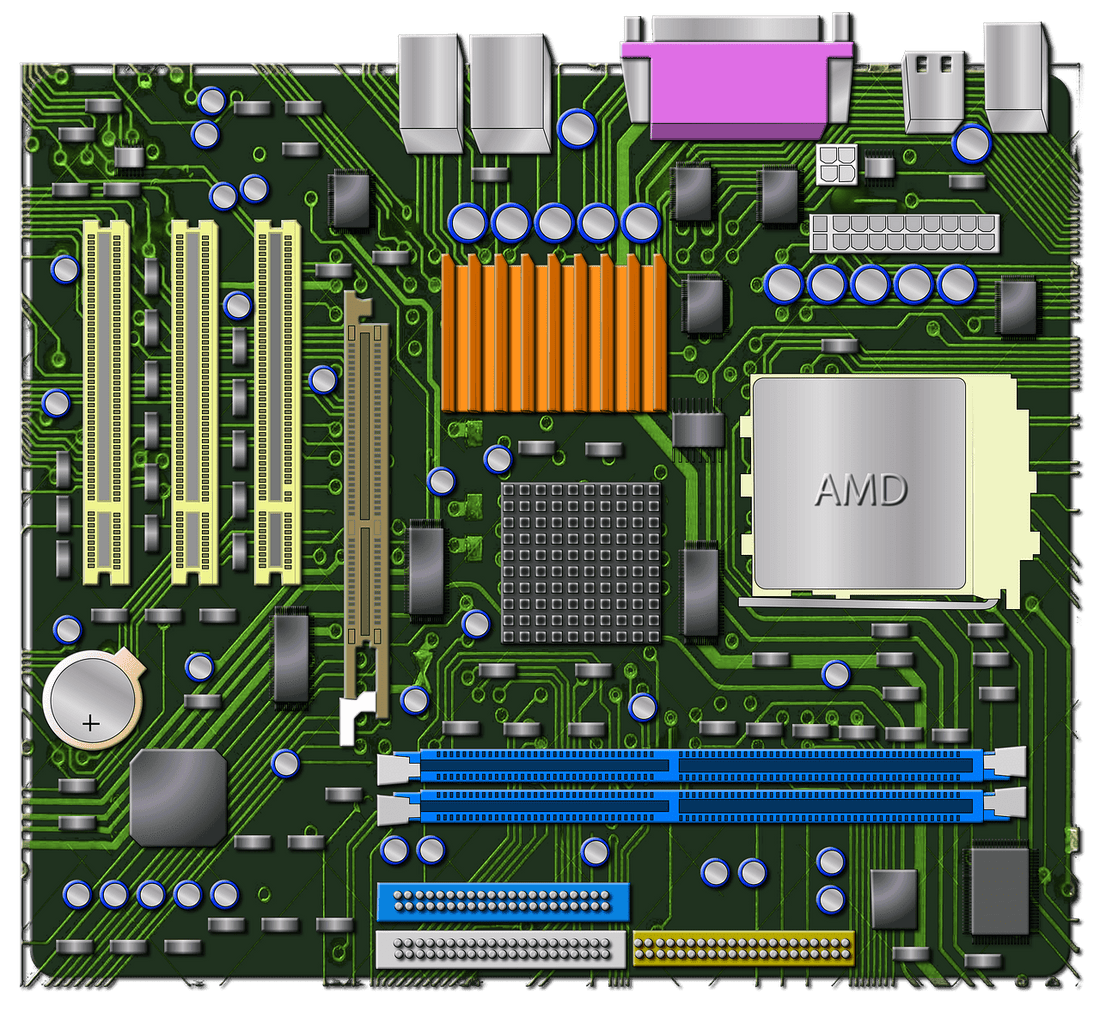
4. Manually Inspect Your Motherboard
If you cannot access your system software or need to confirm details physically, manually checking your motherboard is an option.
Steps to Identify Your Motherboard Manually:
- Turn Off Your PC – Unplug it from power for safety.
- Open the Case – Use a screwdriver if necessary.
- Find the Model Name – Look for printed text on the motherboard, usually near the RAM slots or PCIe slots.
- Check the Manufacturer – Common brands include ASUS, MSI, Gigabyte, and ASRock.
This method ensures 100% accuracy but requires physical access to your motherboard.
5. Understanding Different Types of Motherboards
Motherboards come in various form factors, affecting size and compatibility. Below is a chart showing different motherboard types:
Motherboard Form Factors & Sizes
| Form Factor | Size (mm) | Best Use Case |
|---|---|---|
| ATX | 305 × 244 | High-end gaming, full-sized desktops |
| Micro-ATX | 244 × 244 | Mid-range PCs, compact builds |
| Mini-ITX | 170 × 170 | Small form factor PCs, HTPCs |
| E-ATX | 305 × 330 | Enthusiast builds, workstations |
Choosing the right motherboard size ensures compatibility with your PC case and components.

6. How to Check Your Motherboard’s Chipset and Compatibility
Motherboards use different chipsets, determining what CPUs and features they support. Below is a chipset comparison for Intel and AMD motherboards:
Intel vs. AMD Motherboard Chipsets
| Brand | Chipset | Best Use Case |
|---|---|---|
| Intel | Z790 | High-end gaming, overclocking |
| Intel | B760 | Mid-range builds, good for most users |
| Intel | H610 | Budget builds, office PCs |
| AMD | X670 | Enthusiast builds, overclocking |
| AMD | B650 | Mid-range performance, good balance |
| AMD | A620 | Budget gaming, office work |
Checking your motherboard chipset helps determine what processors and memory types it supports.
7. How to Update Your Motherboard BIOS
Keeping your motherboard BIOS up to date improves compatibility and system stability.
Steps to Update Your Motherboard BIOS:
- Identify your motherboard model (use one of the methods above).
- Visit the manufacturer’s official website.
- Download the latest BIOS update for your motherboard.
- Follow the manufacturer’s instructions to flash the BIOS.
⚠ Warning: BIOS updates should be done carefully to avoid system issues.
8. Troubleshooting Motherboard Issues
If your PC is experiencing hardware issues, your motherboard might be the cause.
Common Motherboard Problems & Fixes
| Issue | Possible Cause | Solution |
|---|---|---|
| PC won’t turn on | Faulty power connections | Check PSU and motherboard power cables |
| No display output | Faulty GPU or RAM | Reseat components, check BIOS settings |
| USB ports not working | BIOS or driver issues | Update motherboard drivers |
| Overheating | Poor airflow | Ensure good cooling, clean dust |
If your motherboard shows signs of failure, consider replacing it with a compatible model.
Identifying your motherboard is essential for upgrades, troubleshooting, and system optimization. Whether you use Windows commands, third-party software, or manual inspection, knowing your motherboard model helps you make informed decisions about your PC hardware.
By following this guide, you’ll be able to check your motherboard details with ease and keep your system running smoothly. Now, go ahead and find your motherboard model today!
>>See also What to Look For in a High Quality Gaming Mouse?






