Do mice work on laptops or consoles?
1. Understanding core mouse compatibility with laptops and consoles
2. How operating systems influence mouse compatibility with laptops and consoles
3. Wired vs wireless performance and how it affects mouse compatibility with laptops and consoles
4. Game support
5. Advanced features
6. Choosing the right mouse for maximum mouse compatibility with laptops and consoles
7. Troubleshooting

Many players wonder whether a gaming mouse can seamlessly function across different devices, and that’s where understanding mouse compatibility with laptops and consoles becomes essential.
Because modern gaming ecosystems are increasingly cross-platform, the importance of mouse compatibility with laptops and consoles has grown dramatically. More people connect peripherals to handhelds, compact laptops, and consoles to improve comfort or gain precision. But not all devices support advanced features such as custom DPI, polling rates, macros, or RGB. To make informed choices, you must first understand how mouse compatibility with laptops and consoles functions in different environments.
1. Understanding core mouse compatibility with laptops and consoles
Mouse compatibility with laptops and consoles depends largely on hardware support and input handling. Laptops, for example, are generally designed with full peripheral support. Consoles, on the other hand, vary drastically in how they interpret mouse input.
Key factors:
-
USB or wireless receiver recognition
-
Built-in OS driver support
-
Whether games support mouse input
-
Sensor and polling rate compatibility
-
Cross-platform firmware behavior
Most laptops support all gaming mice immediately since Windows, macOS, and Linux contain universal driver layers. For consoles, mouse compatibility with laptops and consoles becomes more complicated because game developers must design their titles to accept raw mouse input. Even if a console technically recognizes a mouse, it may not function in all games.
2. How operating systems influence mouse compatibility with laptops and consoles
Each operating system handles mice differently. These differences explain why mouse compatibility with laptops and consoles can vary even with the same device.
Here is a structured comparison:
| Platform | Native Mouse Support | Advanced Feature Support | Notes |
|---|---|---|---|
| Windows Laptop | Excellent | Full | Best overall support |
| macOS Laptop | Strong | Moderate | Some gaming features unavailable |
| Linux Laptop | Good | Good | Depends on distro |
| Xbox Consoles | Moderate | Limited | Works only in supported games |
| PlayStation Consoles | Moderate | Limited | Game-dependent |
| Nintendo Switch | Very limited | None | Only basic cursor support in menus |
These OS-level distinctions show why mouse compatibility with laptops and consoles is not uniform. While laptops handle nearly all sensors, click types, DPI stages, and polling rates, consoles interpret mice more like basic input devices unless a specific game implements its own support layer.
3. Wired vs wireless performance and how it affects mouse compatibility with laptops and consoles
Connection method impacts responsiveness and recognition. Both wired and wireless mice can work across platforms, but each has strengths and limitations when examining mouse compatibility with laptops and consoles.
Wired:
-
Most reliable across laptops
-
Good on consoles with USB ports
-
No batteries
-
Stable polling at 1000 Hz or more
-
Universally detected
Wireless:
-
Works very well on laptops
-
Requires USB receiver or Bluetooth
-
Console wireless support varies
-
Bluetooth not always supported in games
-
Some consoles limit polling rates
When considering mouse compatibility with laptops and consoles, remember that wireless receivers generally work better than Bluetooth on consoles. Bluetooth relies on system-level pairing menus, which many consoles restrict during gameplay.
4. Game support: the most important factor in mouse compatibility with laptops and consoles
Even if a device supports a mouse, not all games allow you to use it. This is the most misunderstood aspect of mouse compatibility with laptops and consoles.
Examples of strong mouse-supported console games:
-
Fortnite
-
Call of Duty (various titles)
-
Overwatch 2
-
Apex Legends (partial support depending on platform)
-
Halo Infinite
Examples of games that reject mice on consoles:
-
Elden Ring
-
Most JRPGs
-
Sports games
-
Many platformers
-
Single-player action titles
This is why mouse compatibility with laptops and consoles depends less on the mouse itself and more on whether developers provide alternative input handling. Laptops naturally support all mouse inputs because their OS is built for productivity, but consoles are gaming-focused and controller-centric.
5. Advanced features: DPI, polling rate, macros, and how they affect mouse compatibility with laptops and consoles
High-performance gaming mice come with advanced features that may not work across platforms. Understanding these limitations will help you evaluate mouse compatibility with laptops and consoles.
Feature behavior across platforms:
| Feature | Laptops | Consoles |
|---|---|---|
| DPI adjustment | Full support | Works only if on-board memory is present |
| Polling rate changes | Fully supported | Usually capped or ignored |
| Macros | Full support via software | Often disabled |
| RGB customization | Works through PC software | Static colors only |
| Lift-off distance tuning | Full support | Onboard only |
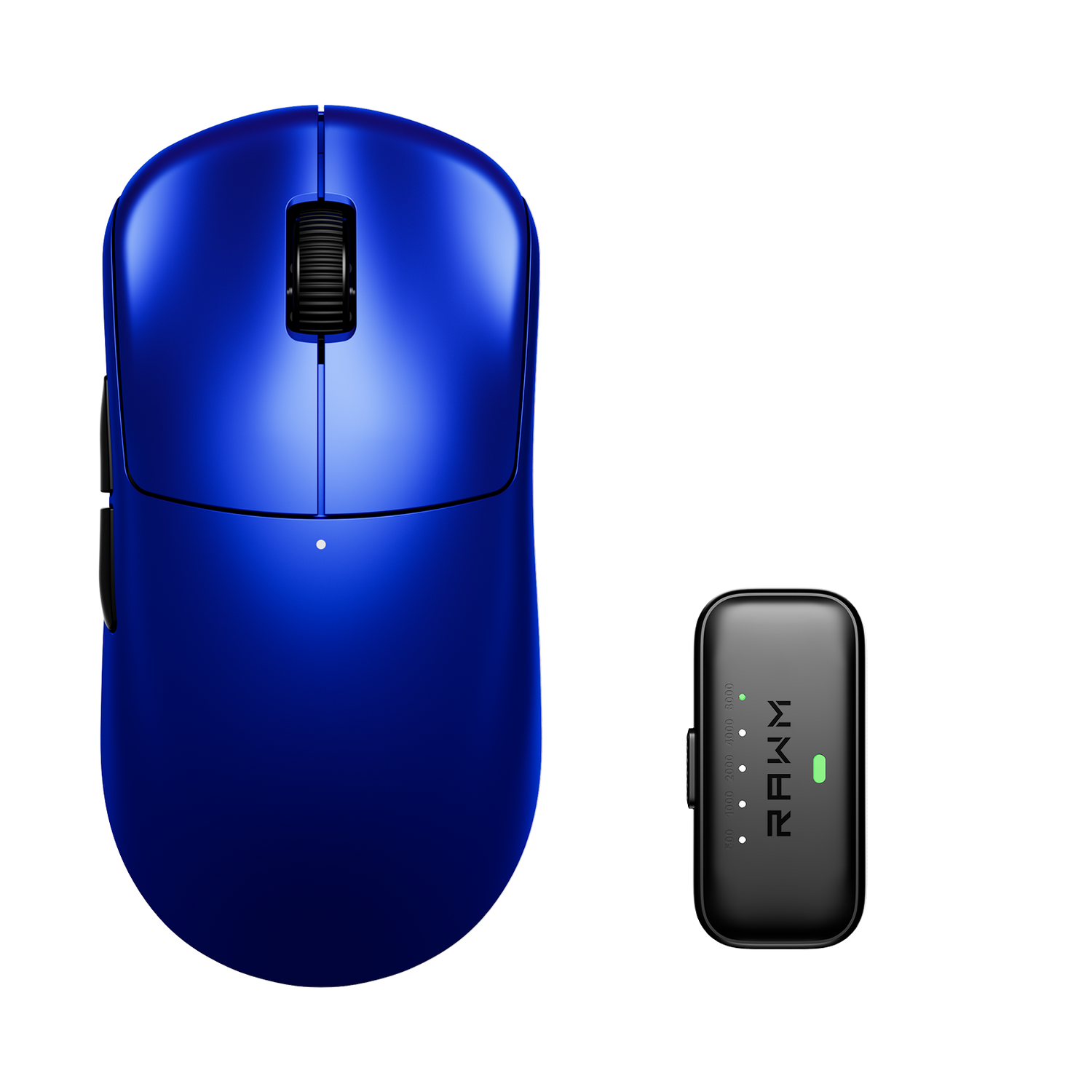
This is why mice with onboard memory, such as the RAWM ER21PRO, are more adaptable across systems. They store DPI steps, polling rates, and other preferences internally, making mouse compatibility with laptops and consoles far more consistent.
6. Choosing the right mouse for maximum mouse compatibility with laptops and consoles
You can maximize mouse compatibility with laptops and consoles by selecting a mouse that works independently from software or device ecosystems.
Look for these qualities:
-
Onboard DPI storage
-
Onboard polling rate tuning
-
USB receiver for wireless stability
-
Universal plug-and-play firmware
-
Sensor optimized for both low and high DPI
-
Buttons that default to standard HID values
Additionally, a flexible paracord cable or low-latency wireless mode prevents performance loss when switching between environments. The more a mouse depends on desktop software, the less universal its compatibility becomes.
7. Troubleshooting mouse compatibility with laptops and consoles
If your mouse is not working correctly, the issue may not be the mouse. Use this quick troubleshooting checklist:
Laptop checklist:
-
Try a different USB port
-
Check OS mouse settings
-
Update drivers
-
Verify surface compatibility
-
Disable conflicting trackpad settings
Console checklist:
-
Ensure the game supports mice
-
Use a wired connection or receiver
-
Restart the console after plugging in
-
Avoid USB hubs
-
Set the console language/region to one that supports keyboard and mouse
These steps resolve most mouse compatibility with laptops and consoles issues without requiring technical expertise.
Understanding mouse compatibility with laptops and consoles is essential for choosing the right gear and avoiding frustration. In the last 100 words of this article, it’s clear that mouse compatibility with laptops and consoles depends on operating systems, game support, connection type, and onboard features. Laptops provide broad and seamless support, while consoles require game-specific mouse integration. By focusing on devices with onboard memory, universal drivers, and stable wired or wireless modes, you can maximize mouse compatibility with laptops and consoles and enjoy consistent performance across platforms.
Which platform do you plan to use a mouse on most often—laptop, console, or both—and what features matter most to your setup?
>>See also Why do pros use low DPI? >>>>>