
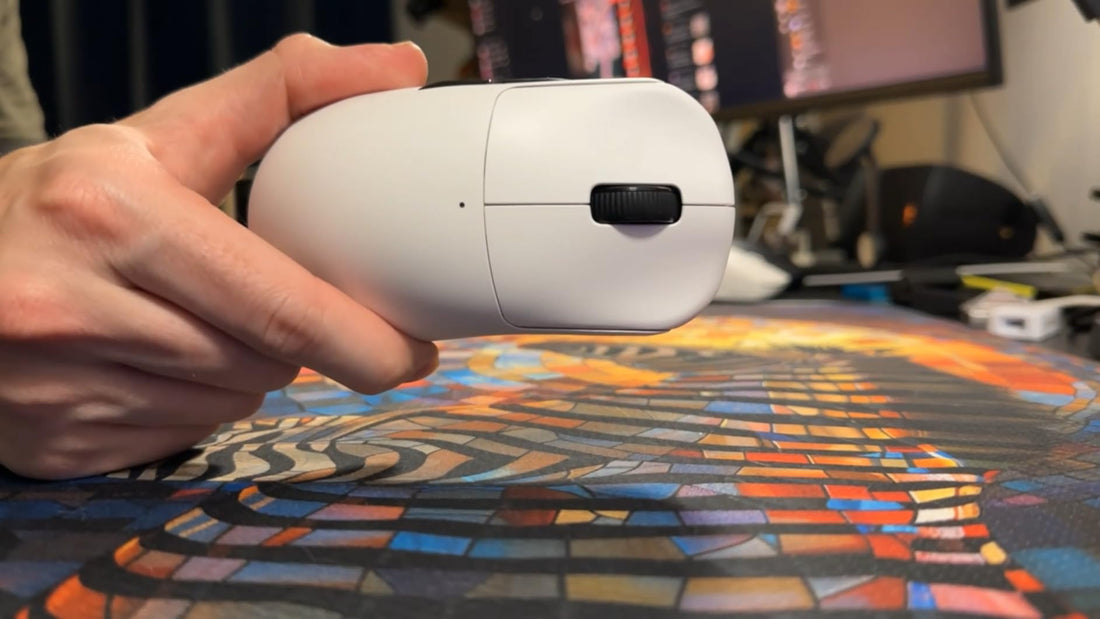
Why Is My Wireless Mouse Not Working Troubleshooting Guide to Fix Common Issues
- 1 Check the Battery Life of Your Wireless Mouse
- 2 Verify the USB Receiver Connection
- 3 Reduce Wireless Interference for Better Performance
- 4 Update or Reinstall Mouse Drivers
- 5 Test the Mouse on Another Device
- 6 Reset or Re-Pair Your Wireless Mouse
- Final Fixes for a Non-Responsive Wireless Mouse

A wireless mouse is an essential tool for productivity and gaming, but connectivity problems can be frustrating. If you’re wondering why is my wireless mouse not working, you’re not alone. Issues like unresponsive cursors, lagging, or complete disconnection can stem from various causes, including battery problems, interference, or driver issues. Let's walk you through step-by-step solutions to get your mouse working smoothly again.
1 Check the Battery Life of Your Wireless Mouse
One of the most common reasons your wireless mouse is not working is dead or low batteries. Unlike wired mice, wireless models rely on battery power, and a weak charge can cause intermittent connectivity or complete failure.
How to fix it:
- Replace the batteries with fresh ones (even if they seem partially charged).
- Ensure the batteries are inserted correctly (check polarity + and -).
- If using rechargeable batteries, try a different charging cable or power source.
Some wireless mice have LED indicators that blink when the battery is low. If yours does, pay attention to these warnings.
2 Verify the USB Receiver Connection
A loose or faulty USB receiver can prevent your wireless mouse from working properly. The tiny dongle can easily get dislodged, damaged, or even lost.
Troubleshooting steps:
- Unplug the USB receiver and reinsert it into a different USB port.
- Avoid using USB hubs—connect directly to your computer for a stronger signal.
- If the receiver is damaged, check if your mouse supports Bluetooth as an alternative.
For Logitech Unifying receivers, you may need to re-pair the mouse using their software.
3 Reduce Wireless Interference for Better Performance
Wireless mice operate on 2.4GHz frequencies, which can face interference from other devices like Wi-Fi routers, cordless phones, or even microwave ovens. This may cause your wireless mouse to lag or disconnect randomly.
How to minimize interference:
- Move closer to the USB receiver (optimal range is usually 10–15 feet).
- Keep other wireless devices away from the mouse and receiver.
- Switch to a Bluetooth mouse if your environment has heavy 2.4GHz traffic.
4 Update or Reinstall Mouse Drivers
Outdated or corrupted drivers can lead to a wireless mouse that stops working unexpectedly. Windows and macOS usually handle drivers automatically, but sometimes manual updates are needed.
Steps to fix driver issues:
- Windows: Open Device Manager > Locate your mouse > Right-click and select "Update driver."
- Mac: Go to System Preferences > Bluetooth > Remove and re-pair the mouse.
- Download the latest drivers from the manufacturer’s website if needed.
5 Test the Mouse on Another Device
If your wireless mouse is still not working, try connecting it to another computer or laptop. This helps determine whether the issue is with the mouse itself or your primary device.
What to do next:
- If the mouse works on another device, the problem is likely with your computer’s settings or USB ports.
- If it doesn’t work anywhere, the mouse may be faulty and need replacement.
6 Reset or Re-Pair Your Wireless Mouse
Some wireless mice have a reset button or require re-pairing with the receiver. This can resolve a wireless mouse that won’t connect after prolonged use.
How to reset:
- Check the manufacturer’s manual for a reset button (often a tiny pinhole).
- For Bluetooth mice, remove the device from your Bluetooth settings and pair it again.
Final Fixes for a Non-Responsive Wireless Mouse
If you’ve tried all the above steps and your wireless mouse is not working, consider these last-resort solutions:
- Clean the mouse sensor (dust or debris can block tracking).
- Try a different surface (some mice struggle on glass or reflective desks).
- Contact customer support for warranty assistance.
A malfunctioning wireless mouse can disrupt your workflow, but most issues are easily fixable. Whether it’s dead batteries, interference, or driver problems, this guide should help you troubleshoot why your wireless mouse is not working.
Have you experienced wireless mouse problems before? What solution worked best for you? Share your tips in the comments below!
>>See also Finding the Right Mouse for Your Needs Made Easy >>>>>







74 comments
Very helpful
Wow that was surprisingly easy to follow
Hello, IT?
Thanks! This is helpful~
Cool