Why does mouse cursor drift or float?
- Sensor Misreading the Surface
- Dirt or Dust Blocking the Sensor
- Mouse Acceleration or Smoothing Settings
- Wireless Signal Interference
- Outdated Drivers or Software Glitches
- Hardware Wear or Sensor Limitations
- Environmental Factors That Affect Tracking

Few computer experiences are more frustrating than watching a mouse cursor move when you are not touching the mouse. Sometimes the pointer slowly drifts across the screen, while in other situations it appears to float or jitter unpredictably. This behavior can interrupt work, disrupt gameplay, and make precise tasks nearly impossible.
Mouse cursor drifting usually comes from small technical issues related to sensors, surfaces, software settings, or hardware interference. Modern mice rely on optical or laser sensors to track movement across a surface, and even small environmental factors can affect how those sensors interpret motion.
In most cases, the problem is not serious and can be solved with simple adjustments. Identifying the cause is the key step toward restoring stable cursor control and preventing unwanted movement.
1. Sensor Misreading the Surface
One of the most common causes of cursor drifting is the mouse sensor misreading the surface beneath it. Optical and laser sensors work by capturing tiny images of the surface below the mouse and comparing those images to detect movement.
If the surface is too reflective, too smooth, or too uneven, the sensor may struggle to detect patterns correctly. When this happens, the mouse may interpret small lighting changes or micro-textures as movement, causing the cursor to drift even when the mouse remains still.
Glass desks, glossy tabletops, and highly reflective materials often trigger this behavior. The sensor cannot track consistently on these surfaces, so it produces random or floating cursor movements.
Switching to a proper mousepad usually solves the issue immediately. Mousepads provide a controlled texture designed specifically for accurate sensor tracking. Even a simple cloth mousepad can dramatically improve stability compared to bare desks or reflective surfaces.
2. Dirt or Dust Blocking the Sensor
Another frequent cause of drifting is dirt or dust accumulating around the mouse sensor. Over time, tiny particles can gather near the optical lens located underneath the mouse.
When debris blocks part of the sensor’s view, the tracking system may misinterpret light reflections as movement. This can create a drifting cursor that moves slightly in random directions.
Cleaning the mouse is often a quick and effective solution. Turning the mouse upside down and gently blowing air around the sensor area can remove loose particles. A soft cotton swab can also be used carefully to clean the lens area.
Keeping the mousepad clean helps prevent the issue from returning. Dust, hair, and crumbs that collect on the pad can eventually make their way into the sensor area.
Regular maintenance keeps tracking smooth and prevents unexpected cursor behavior.
3. Mouse Acceleration or Smoothing Settings
Cursor drift can sometimes be mistaken for mouse acceleration or smoothing effects. These settings adjust cursor movement depending on how quickly the mouse moves.
With mouse acceleration enabled, slow movements produce shorter cursor movement while fast motions cause the cursor to travel farther. For users who expect consistent one-to-one movement, this can feel like the cursor is floating or behaving unpredictably.
Disabling pointer acceleration in the operating system can restore more predictable control. In many systems this setting appears as “Enhance Pointer Precision.”
Once disabled, cursor movement becomes directly tied to the physical distance the mouse travels. This makes movement feel more stable and easier to control.
While acceleration does not cause true drifting, it can create a similar feeling that confuses many users.
4. Wireless Signal Interference
Wireless mice depend on radio signals or Bluetooth connections to communicate with the computer. If the signal becomes unstable, the cursor may behave erratically.
Interference can come from many sources, including nearby wireless devices, USB hubs, routers, or even certain types of lighting. When the connection briefly drops or weakens, the mouse may send incomplete data, which can cause cursor jumps or floating movement.
Battery levels can also play a role. When wireless mouse batteries begin running low, signal stability may decrease, leading to delayed or inaccurate tracking.
Moving the wireless receiver closer to the mouse often improves reliability. Replacing old batteries or switching to a direct USB port instead of a hub can also help restore stable performance.
5. Outdated Drivers or Software Glitches
Sometimes the problem originates from software rather than hardware. Mouse drivers, system updates, or background applications can occasionally cause cursor instability.
An outdated driver may struggle to communicate properly with newer operating system versions. This mismatch can produce unusual pointer behavior such as lag, jitter, or drifting.
Updating the mouse driver through the system device manager or installing the latest software from the manufacturer can resolve these compatibility issues.
Restarting the system can also clear temporary glitches that interfere with input devices. In many situations, a simple reboot resolves cursor problems immediately.
Keeping operating systems and peripheral software updated ensures smoother communication between hardware and software.
6. Hardware Wear or Sensor Limitations
If a mouse has been used for several years, hardware wear can start affecting performance. Sensors can degrade over time, internal components may loosen, and switches may become less reliable.
When the sensor no longer reads surfaces accurately, it may report tiny movements that cause the cursor to drift. Older or lower-quality sensors are more prone to this issue.
Replacing the mouse can sometimes be the most practical solution, especially if the device has already seen heavy daily use.
Modern sensors are designed to handle a wide variety of surfaces and movements more accurately than older generations. Many users notice immediate improvements when upgrading to newer hardware.
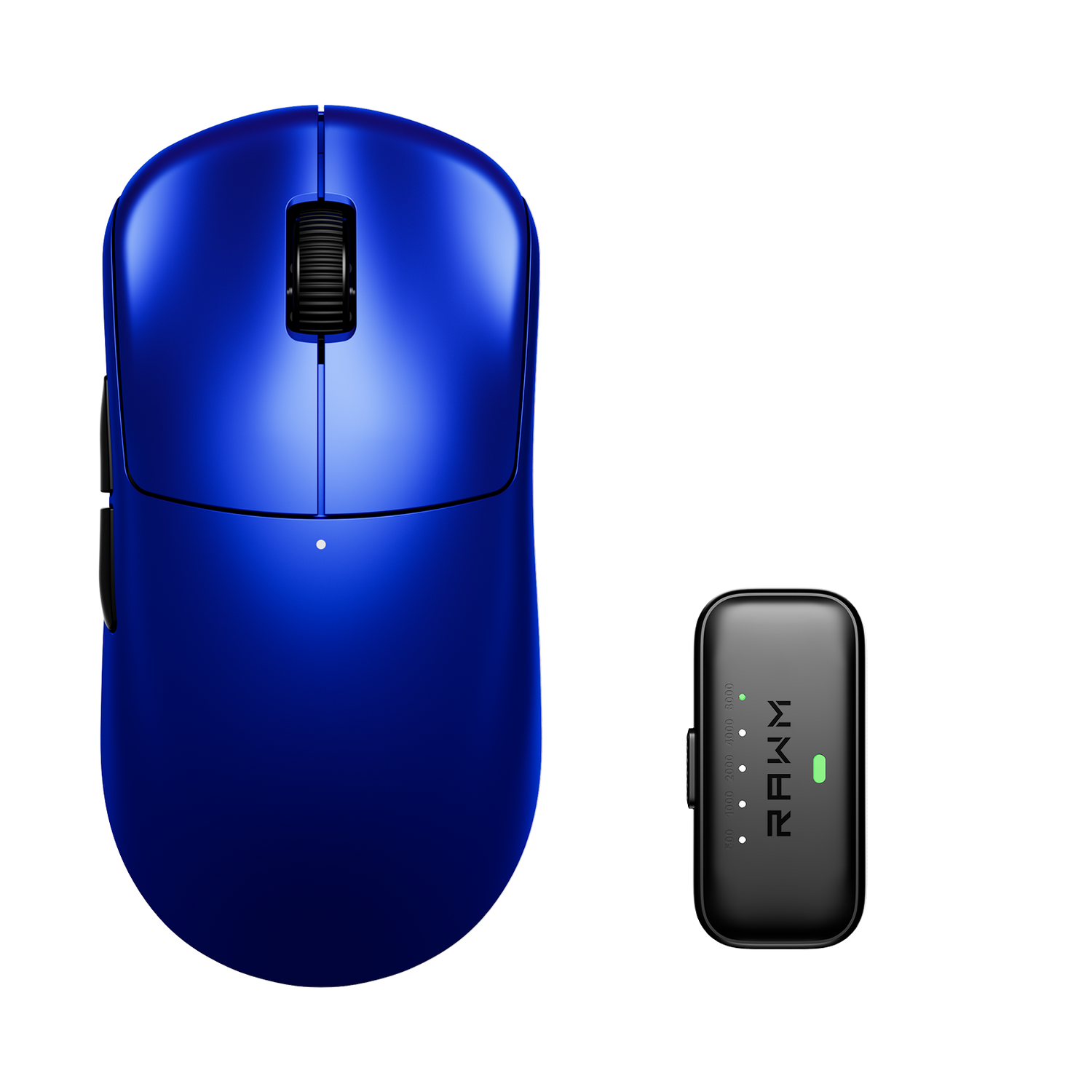
For users who rely on precise cursor control for gaming or professional tasks, consistent tracking hardware—such as devices engineered for stable sensor performance like the Leviathan V4—can significantly reduce the chances of drifting behavior.
7. Environmental Factors That Affect Tracking
Environmental conditions can also influence mouse sensor behavior. Bright sunlight shining directly on the mousepad can interfere with optical sensors, causing them to misinterpret reflections as movement.
Certain LED lighting setups may produce similar interference depending on the angle and intensity of the light.
Temperature changes can sometimes affect electronic components as well, although this is less common. Extremely dusty environments or areas with lots of airborne particles may also increase the chance of sensor contamination.
Positioning the mousepad away from direct sunlight and keeping the workspace clean can help maintain stable tracking conditions.
Even small adjustments to desk lighting or mouse placement can improve sensor accuracy and eliminate unexpected cursor movement.
Have you ever noticed your cursor slowly drifting across the screen when your hand isn’t touching the mouse?
>>See also Do Esports Players Use Mouse Bungees? >>>>>