
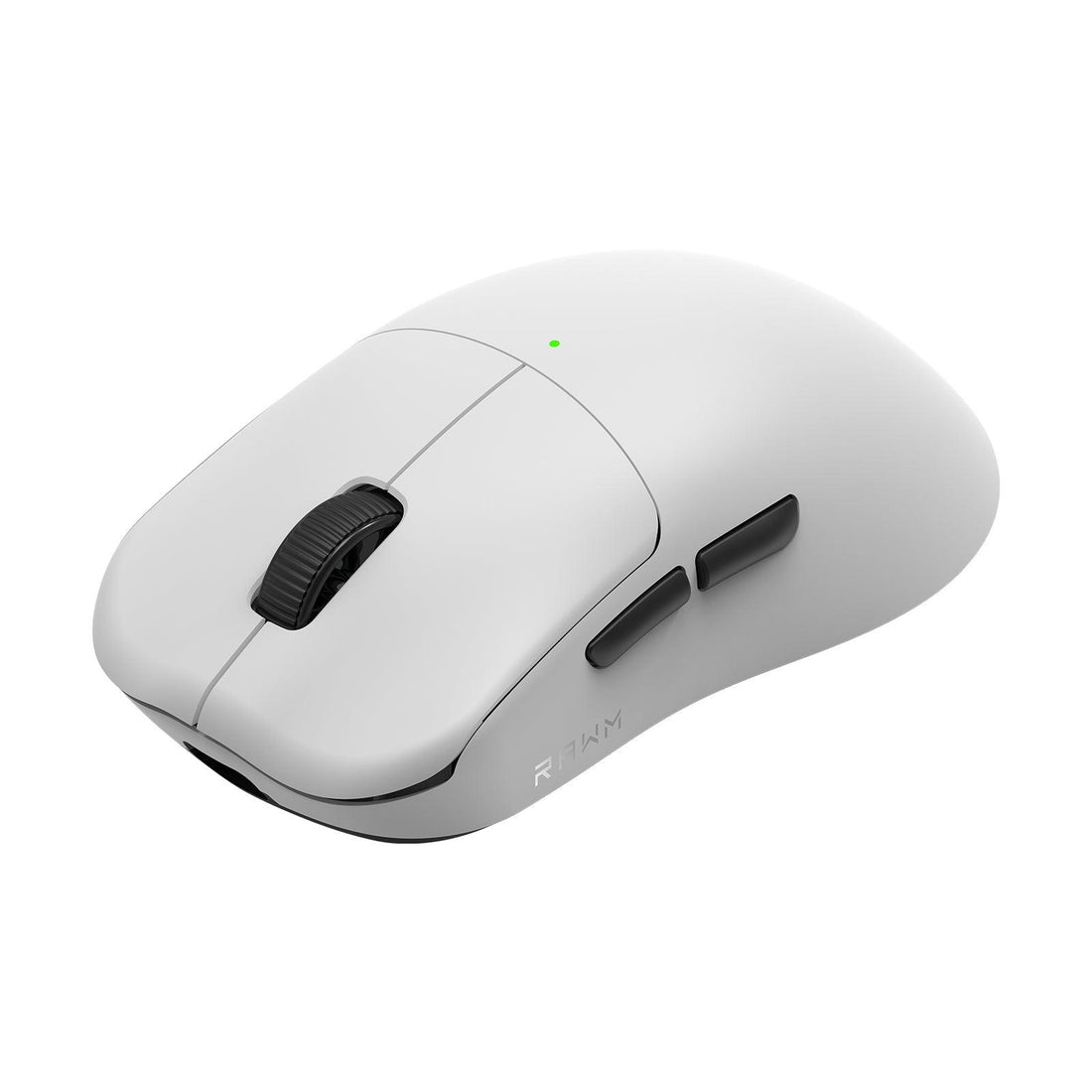
How to Restore Your Computer Mouse to Its Default Settings?
- 1. Why Resetting Your Computer Mouse Can Help
- 2. How to Reset Your Computer Mouse: Basic Troubleshooting Steps
- 3. Resetting a Wired Computer Mouse
- 4. Resetting a Wireless Computer Mouse
- 5. Resetting Mouse Settings via Software
- 6. Using Mouse Software to Reset Custom Settings
-
7. Troubleshooting and When to Consider Replacing the Mouse

Having issues with your computer mouse? Whether it’s malfunctioning, unresponsive, or simply not behaving the way it should, resetting your computer mouse to its default settings can often resolve these problems. In this comprehensive guide, we’ll walk you through various methods to reset your computer mouse and ensure it works properly again, whether it’s wired or wireless.
By the end of this article, you'll be equipped with all the knowledge needed to restore your computer mouse to its original condition, ensuring smooth and efficient use in no time.
1. Why Resetting Your Computer Mouse Can Help
Before diving into the methods for resetting your computer mouse, let’s first discuss why this action can be helpful.
Benefits of Resetting Your Mouse:
-
Fix Unresponsiveness: If your mouse stops responding or moves erratically, a reset can help restore normal function.
-
Restore Default Settings: If you’ve made changes to your mouse settings that you no longer prefer, resetting it will return it to factory settings.
-
Solve Connection Issues: Sometimes, connection problems arise due to software or driver errors, and a reset can often solve these issues.
2. How to Reset Your Computer Mouse: Basic Troubleshooting Steps
Step 1: Check for Hardware Issues
Before resetting your computer mouse, make sure that it’s not a hardware issue causing the problem. Here’s how you can quickly troubleshoot:
-
Check the USB connection: Make sure the mouse is plugged in properly (for wired mice) or that the wireless receiver is connected to the computer.
-
Test with another computer: Try using the mouse with a different computer to rule out issues with your device.
3. Resetting a Wired Computer Mouse
Step 2: Power Cycle Your Mouse
If you're using a wired computer mouse and it's not working as expected, here’s how you can reset it:
-
Unplug the mouse from the USB port.
-
Wait for 10–15 seconds before plugging it back in.
-
Reboot your computer to see if the mouse responds correctly.
This simple process allows the mouse to reconnect and reset its internal settings.
4. Resetting a Wireless Computer Mouse
Step 3: Reset Your Wireless Mouse
If you're using a wireless computer mouse and facing issues, follow these steps to reset it:
-
Turn off the mouse by pressing the power button (or removing the battery if it's not powered off).
-
Remove the USB receiver from the computer.
-
Wait for 10 seconds, then plug the USB receiver back in.
-
Turn the mouse back on and check if it’s working properly.
Step 4: Re-pair the Mouse
In case your wireless mouse has Bluetooth functionality, you can try re-pairing it with your computer:
-
Remove the mouse from the Bluetooth devices list in your computer settings.
-
Restart your computer and turn your mouse off and on.
-
Re-pair the mouse with your computer through Bluetooth settings.
5. Resetting Mouse Settings via Software
Step 5: Reset Mouse Settings via the Control Panel (Windows)
For a more advanced reset, you can restore the mouse settings through your computer's operating system:
-
Open the Control Panel and navigate to Mouse settings.
-
Under the Pointers tab, you can click Restore Defaults to reset your mouse settings to the default settings.
Step 6: Reset Mouse Settings via System Preferences (Mac)
-
Go to System Preferences on your Mac.
-
Click Mouse and check the settings for the button configuration and scrolling speed.
-
Reset the settings by selecting the default configurations in the menu.
6. Using Mouse Software to Reset Custom Settings
If your computer mouse came with custom software (e.g., Logitech, Razer, or Corsair), you can use that software to reset your mouse to factory settings.
Step 7: Reset Through Mouse Software
-
Open the Mouse Software that was installed with your mouse.
-
Go to the settings or profiles tab.
-
Look for the Reset to Default option and select it to restore your mouse’s default settings.
7. Troubleshooting and When to Consider Replacing the Mouse
If your computer mouse is still not working after resetting it, it may be time to consider other troubleshooting methods or even replacing the mouse. Here are a few tips:
-
Update or reinstall mouse drivers: Sometimes, outdated or corrupted drivers can cause issues with the mouse.
-
Check for software conflicts: Certain applications may interfere with mouse functionality.
-
Consider a replacement: If the mouse still doesn't respond after resetting and troubleshooting, it could be defective and may need to be replaced.
Keep Your Mouse in Top Shape
Resetting your computer mouse is a quick and effective way to solve issues like unresponsiveness, erratic movement, and connection problems. Whether you’re using a wired or wireless mouse, knowing how to reset your device ensures you’re always ready for smooth and precise navigation.
Remember:
-
For wired mice, a simple unplug and replug often do the trick.
-
For wireless mice, ensure the receiver is properly connected and try re-pairing if necessary.
-
Use software to restore custom settings and ensure your mouse is configured correctly.
By following these easy steps, you can keep your computer mouse functioning properly and avoid any interruptions in your work or gaming sessions.
Would you like to learn more about gaming mice and their advanced features? Check out our range of premium gaming mice and elevate your gameplay!
>>See also Why is my RAWM mouse double clicking? >>>>>






