
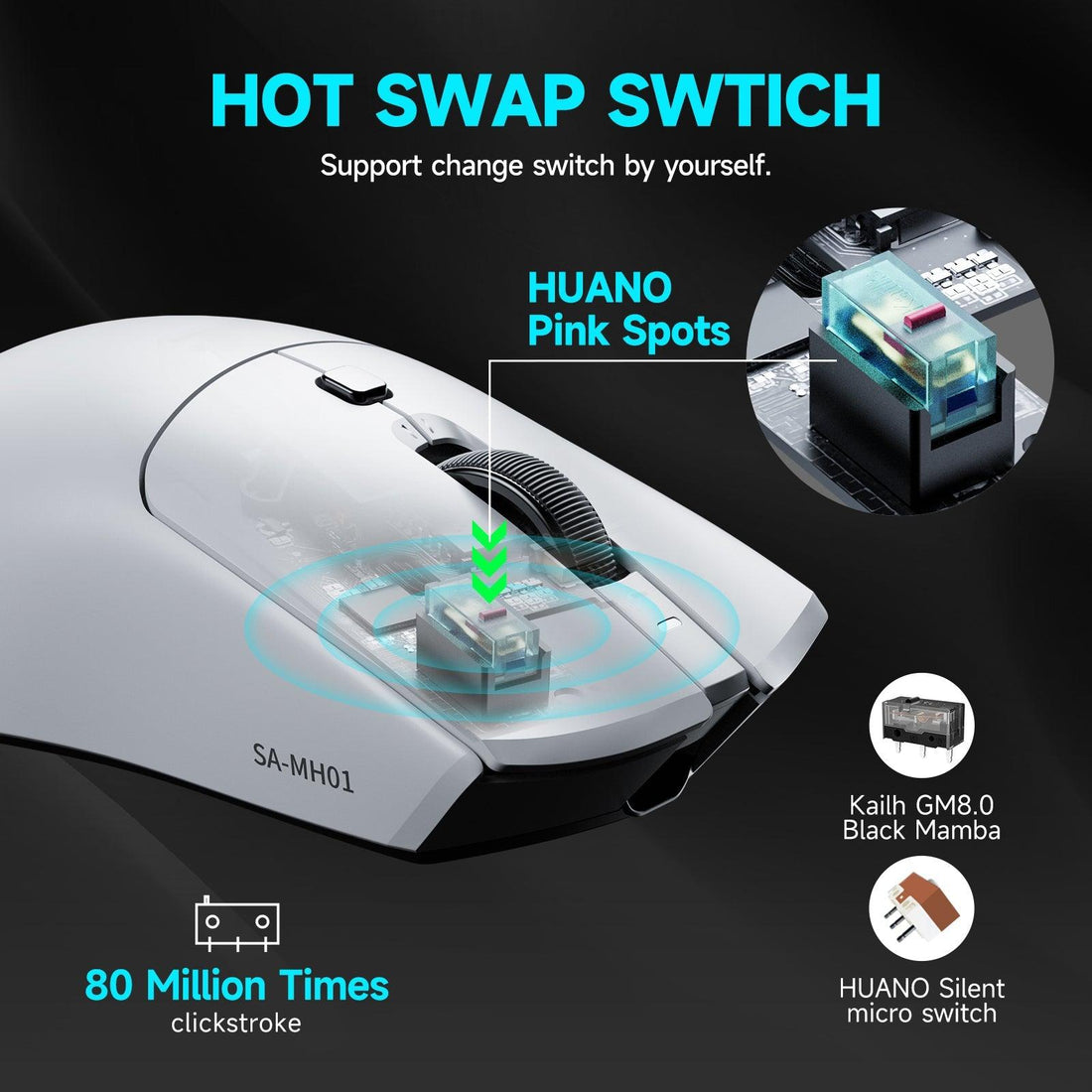
A Deep Dive into Mechanical Mouse Switches Explained
- 1. What Are Mechanical Mouse Switches?
- 2. How Do Mechanical Mouse Switches Work?
- 3. Types of Mechanical Mouse Switches
- 4. How to Choose the Right Switch
- 5. Performance Factors to Consider
- 6. Maintenance Tips
- 7. Common Issues and Fixes
- 8. Mechanical vs Optical Switches
- 9. Best Mice with Top Switches

When it comes to gaming or productivity, the feel and performance of your mouse clicks can dramatically affect your experience. That’s why understanding mechanical mouse switches explained is so important for serious users. These switches determine how your mouse responds, how fast it registers clicks, and how long it lasts. Whether you’re a competitive gamer or a digital creator, this knowledge will help you make smarter choices when buying a mouse.
Let's break down the components, types, and performance metrics behind mechanical mouse switches explained. By the end, you’ll be able to compare switch types with confidence and understand what sets premium switches apart from the rest.
1. What Are Mechanical Mouse Switches?
To begin with, mechanical mouse switches explained refers to the physical components underneath your mouse buttons that register each click. Unlike membrane switches, which rely on pressure pads, mechanical switches use spring-loaded mechanisms for more tactile and responsive feedback.
Key Components:
-
Actuator – The part you press
-
Spring – Provides resistance
-
Metal contact leaves – Connect to register a signal
-
Housing – Holds all the parts together
Each time you press a button, the spring compresses, causing two metal contacts to touch and send a signal to your computer.
2. How Do Mechanical Mouse Switches Work?
In this section of mechanical mouse switches explained, we dive into the operation process.
When you press a mouse button, the switch inside goes through the following steps:
-
The actuator pushes down on a plunger.
-
The plunger compresses a spring inside the switch housing.
-
Once a certain actuation force is met, the metal contacts snap together.
-
A signal is sent instantly to the mouse’s circuitry.
-
Releasing the button resets the spring for the next press.
This mechanism allows for crisp, fast, and precise clicking—ideal for high-performance gaming.
3. Types of Mechanical Mouse Switches
Not all mechanical switches are the same. Let’s compare the most common types in this mechanical mouse switches explained section:
| Switch Type | Manufacturer | Tactile Feedback | Durability (Clicks) | Popular Use |
|---|---|---|---|---|
| Omron | Omron | Light and crisp | 20M – 50M | Most gaming mice |
| Kailh | Kaihua | Medium resistance | 20M – 80M | Budget gaming mice |
| Huano | Huano | Heavier clicks | 20M – 70M | FPS gaming mice |
| Razer Optical | Razer | Optical, fast | 70M – 100M | Razer mice only |
Each of these adds a unique feel, which we’ll explore next.
4. How to Choose the Right Switch
The right choice depends on your personal preferences and gaming style. In this part of mechanical mouse switches explained, we offer some guidance:
-
For fast-paced FPS games: Look for Omron or Huano switches with lower actuation force.
-
For long-duration strategy games: Choose Kailh for a balance of comfort and durability.
-
For esports professionals: Consider Razer Optical switches for nearly instant actuation and longevity.
Also, take into account the noise level. Heavier switches like Huano are louder, which may be distracting in quiet environments.
5. Performance Factors to Consider
Now let’s focus on performance metrics in mechanical mouse switches explained:
| Factor | Importance |
|---|---|
| Actuation Force | Affects how hard you need to press |
| Debounce Delay | Determines how fast clicks register |
| Durability | Measured in millions of clicks |
| Tactility | The “feel” of the click |
A high debounce delay can cause missed inputs, especially in competitive gaming. That’s why premium switches are engineered for ultra-low latency.
6. Maintenance Tips
Understanding mechanical mouse switches explained also means knowing how to maintain them:
-
Keep switches dust-free by cleaning with compressed air.
-
Avoid moisture to prevent corrosion of contact leaves.
-
Use consistent pressure to avoid switch damage from aggressive clicking.
-
Replace switches if you notice double-clicking or failure to register.
These practices can extend the life of your mouse by years.
7. Common Issues and Fixes
Even the best switches can encounter problems. In this part of mechanical mouse switches explained, we cover common issues:
| Issue | Cause | Fix |
|---|---|---|
| Double-clicking | Worn contacts or spring issue | Replace switch or clean it |
| Unresponsive clicks | Dust or broken actuator | Open and clean or replace |
| Inconsistent feel | Manufacturing variance | Switch upgrade or re-solder |
Being able to diagnose issues can help you avoid replacing your entire mouse unnecessarily.
8. Mechanical vs Optical Switches
An important topic in mechanical mouse switches explained is the difference between traditional mechanical and newer optical switches.
Mechanical Switches:
-
Use physical contact points
-
Offer distinct tactile feedback
-
Subject to wear over time
Optical Switches:
-
Use infrared beams to register clicks
-
Near-instantaneous response
-
Longer lifespan (up to 100M clicks)
Optical switches are ideal for speed and durability, but some gamers prefer the tactile feedback of mechanical options.
9. Best Mice with Top Switches
Looking to upgrade? Here are some highly recommended options in the mechanical mouse switches explained discussion:
| Mouse Model | Switch Type | Ideal For |
|---|---|---|
| Logitech G Pro X Superlight | Omron 50M | Competitive FPS |
| Razer Viper V2 Pro | Razer Optical | Esports and fast-paced games |
| Glorious Model O | Kailh GM 8.0 | Lightweight performance |
| Zowie EC2 | Huano | Tactical shooters |
These mice offer the best performance for different grip styles and gaming preferences.
To wrap up, understanding mechanical mouse switches explained is crucial whether you're a gamer, designer, or everyday user. Switches determine how your mouse responds, feels, and lasts—and with the right information, you can choose one that enhances your workflow or playstyle.
By learning about types, mechanics, performance factors, and maintenance, you're now well-equipped to identify the ideal mouse switch for your needs.
Have you ever noticed how your mouse clicks feel different from others? Which switch type do you think is right for your playstyle or work? Share your experience in the comments—we’d love to hear your thoughts!
>>See also Which Is the Best Mouse Grip for Gaming? >>>>>






